One-tap encrypted DNS
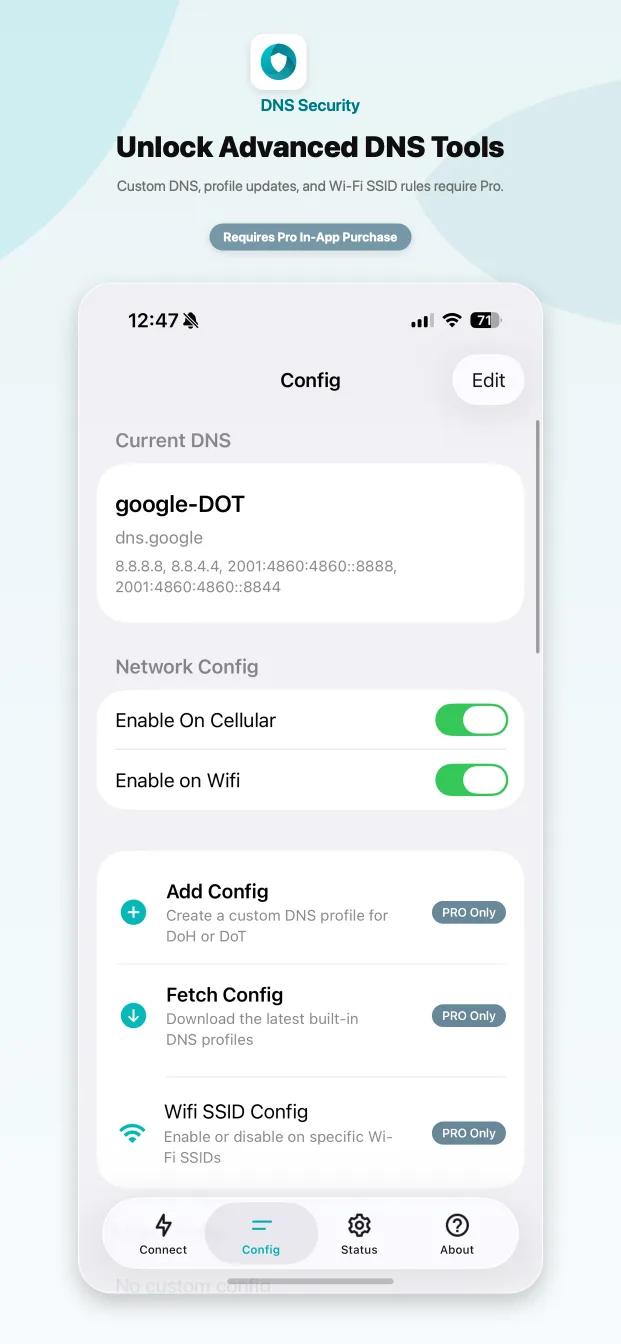
Turn on DNS over HTTPS or DNS over TLS from the Connect tab, then confirm the DNS profile in Settings.
For iPhone, iPad and Mac
DNS Security turns on DNS over HTTPS or DNS over TLS system-wide in one tap. Your DNS lookups stay private and tamper-proof, and the rest of your traffic never goes through a VPN server.
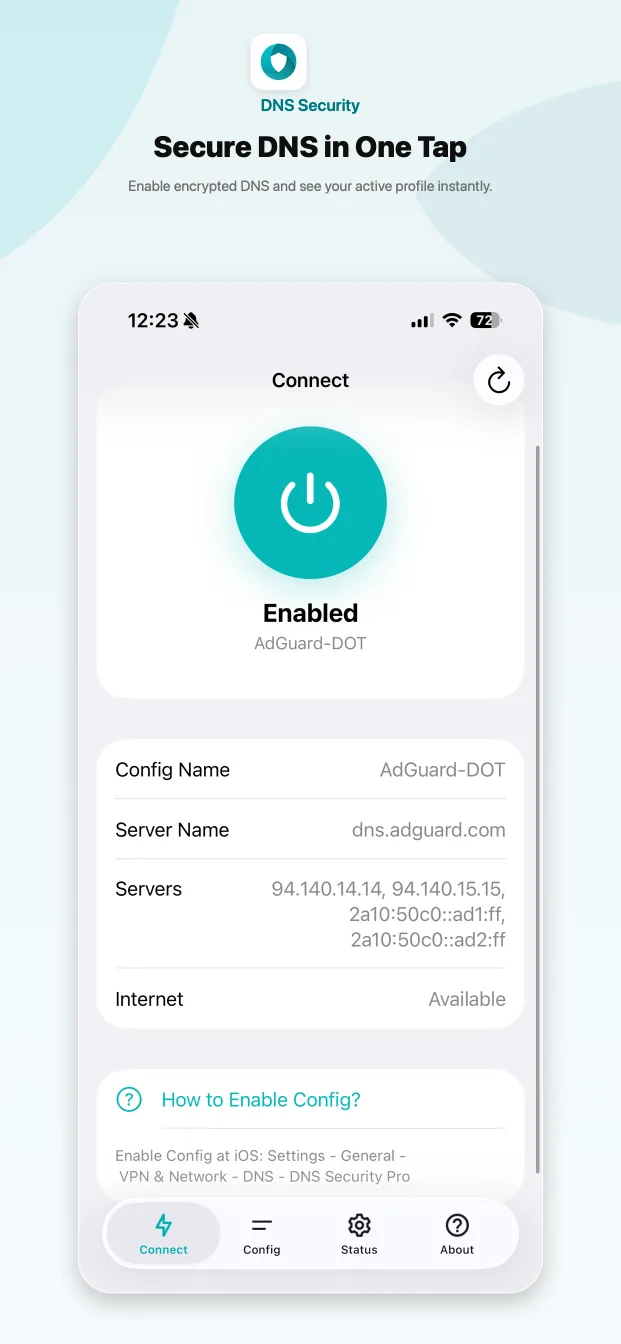
Pick a trusted resolver, switch it on, and every app on your device resolves names over an encrypted connection.
Turn on DNS over HTTPS or DNS over TLS from the Connect tab, then confirm the DNS profile in Settings.
Ready-made profiles for Cloudflare, Google Public DNS, AdGuard DNS, Quad9 and more, including malware and family filters.
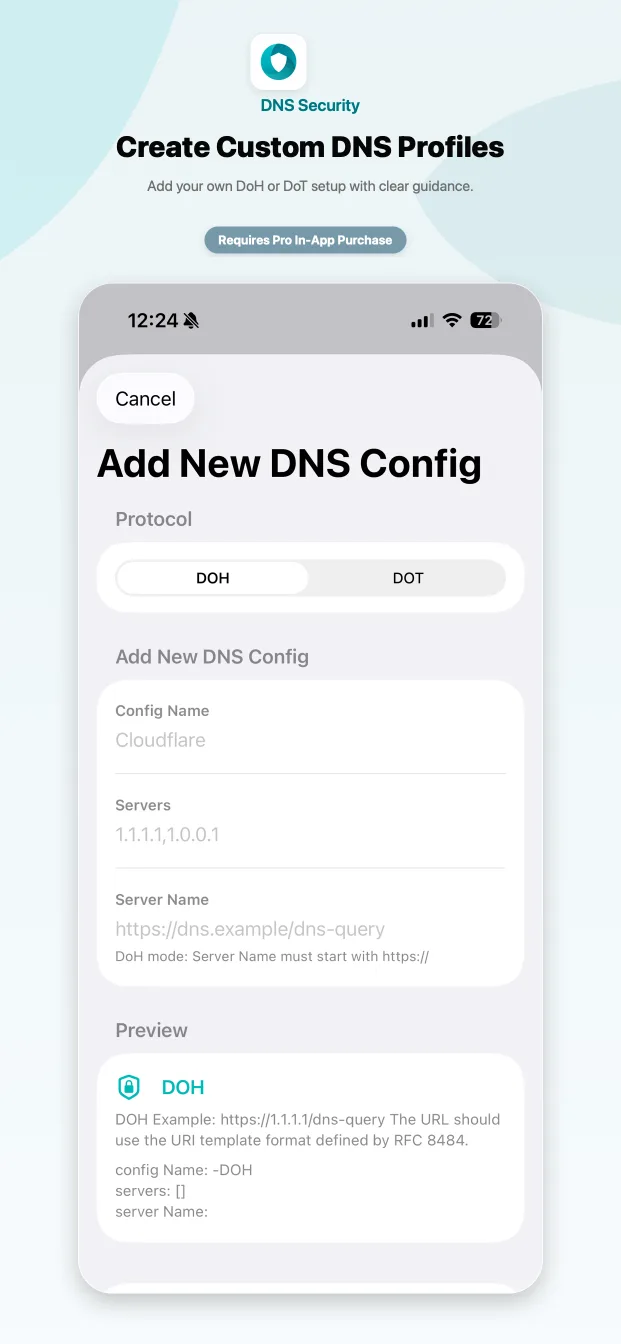
Add your own DoH or DoT server with built-in validation for server addresses and server names.
Decide which Wi-Fi networks use encrypted DNS, for example off at home and on everywhere else.
See the active DNS profile, protocol, proxy state and network status at a glance.
Switch DNS profiles from Shortcuts or other apps with the custom URL scheme and automate your setup.
A clean, native interface designed for iOS, iPadOS and macOS.
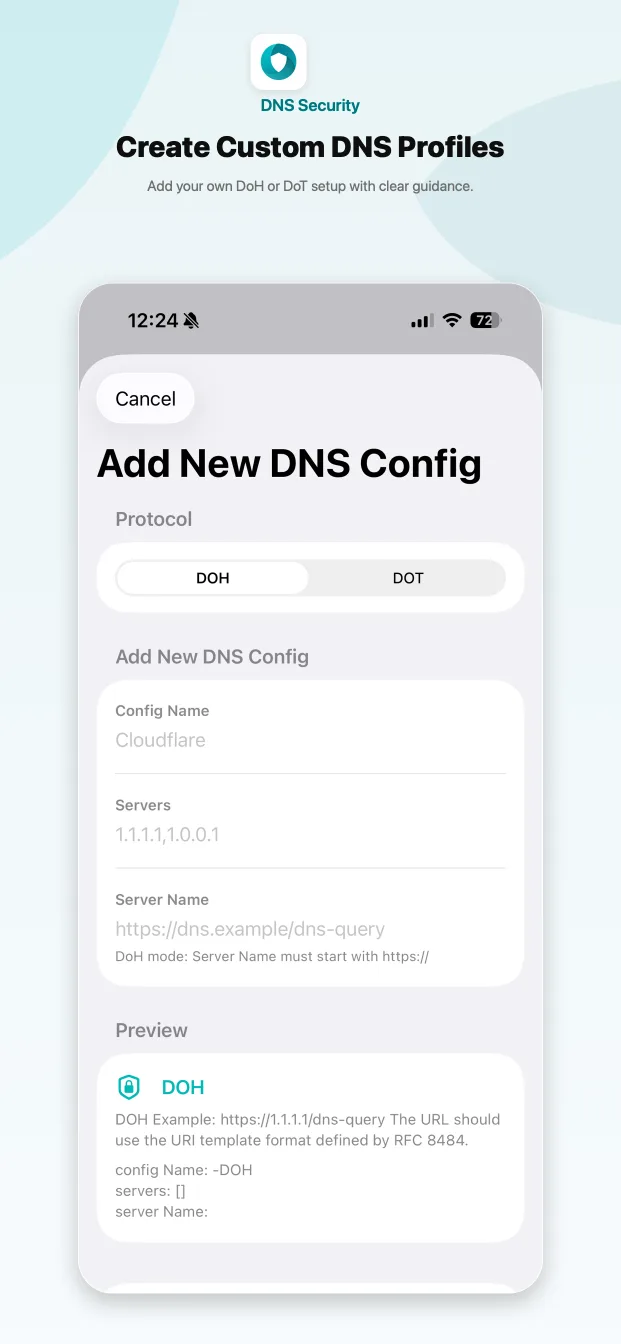
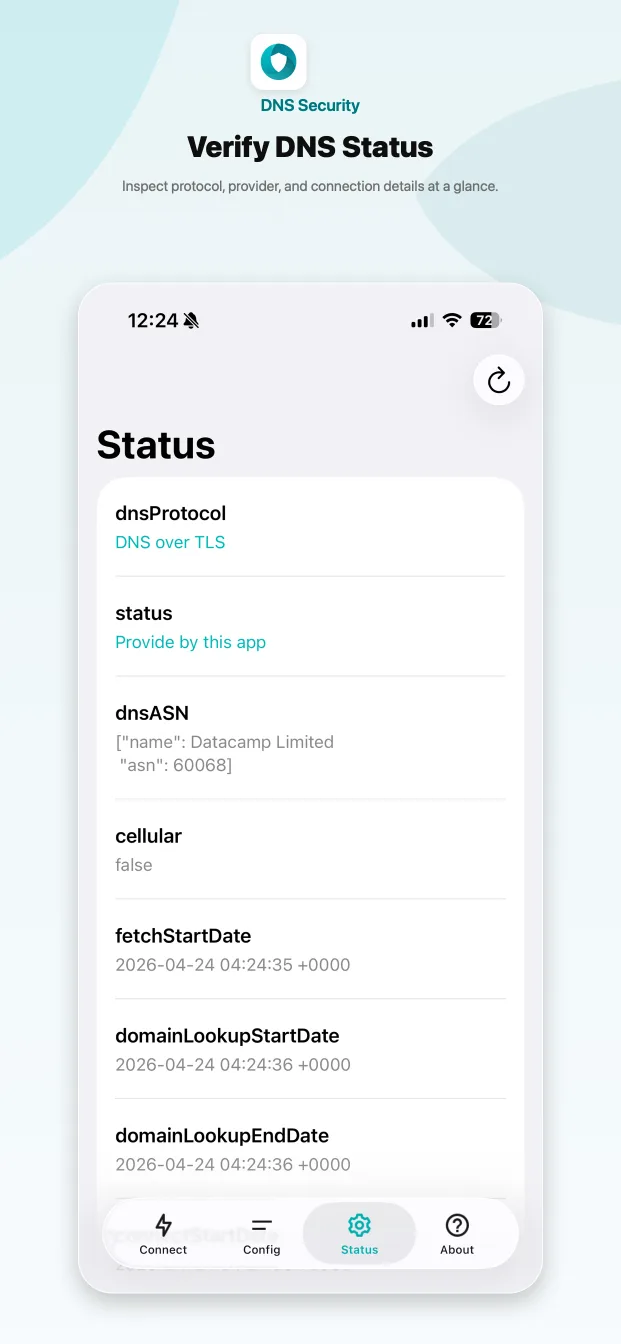
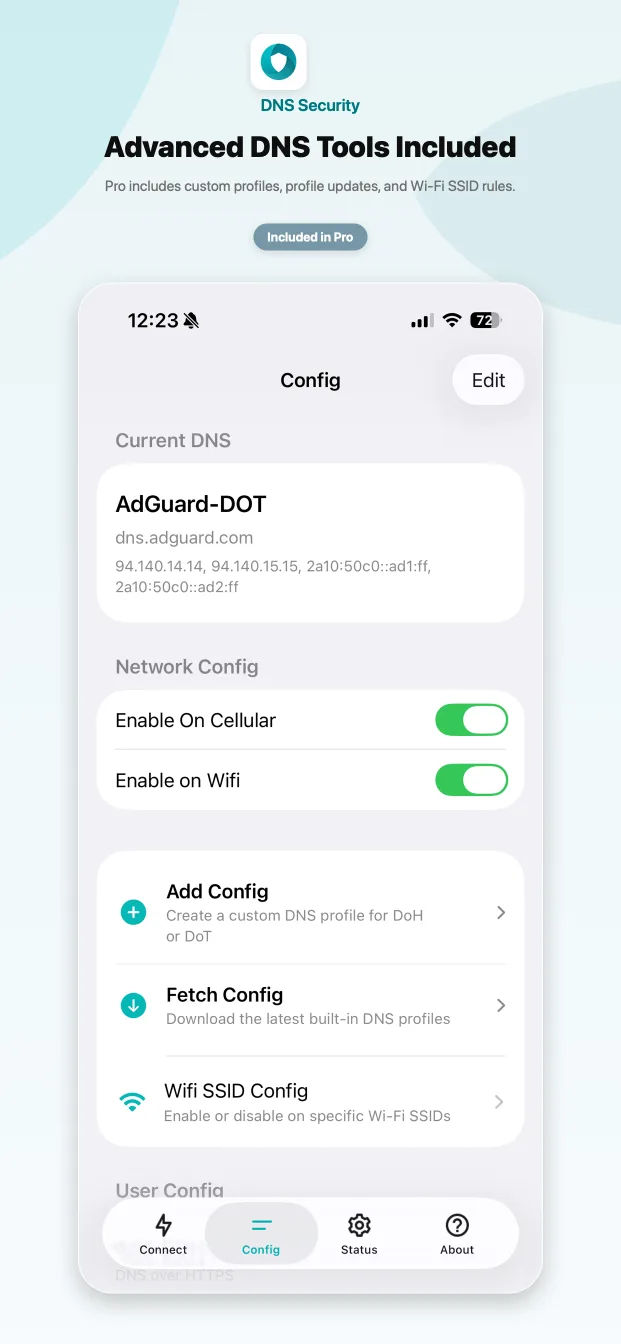
Every time you open a website or an app connects to a server, your device first asks a DNS resolver for its address. Normal DNS sends these questions in plain text, so anyone on the network, including public Wi-Fi operators and internet providers, can read or change them.
DNS Security configures Apple's system encrypted DNS so these lookups are sent over DNS over HTTPS or DNS over TLS to the provider you choose. Only DNS is affected, so your speed and your other traffic stay exactly as they were.
Both apps use the same encrypted DNS engine. Pick the one that fits you.

Free, with optional Pro upgrade
One-time purchase, everything included
No. DNS Security uses Apple's built-in encrypted DNS settings, so only DNS lookups are sent to the resolver you choose. The rest of your traffic goes directly to the internet as usual and is never routed through an app server.
Both encrypt DNS queries between your device and the DNS resolver. DNS over HTTPS (DoH) sends queries inside regular HTTPS traffic on port 443, while DNS over TLS (DoT) uses a dedicated TLS connection on port 853.
DNS Security includes profiles for Cloudflare (including its malware and family filters), Google Public DNS, AdGuard DNS, Quad9, Chunghwa Telecom HiNet, TWNIC and Pi-DNS. Pro users can also add their own DoH or DoT servers.
DNS Security Lite is free and includes the core encrypted DNS workflow; Pro features can be unlocked with an in-app purchase. DNS Security Pro is a separate paid app with every Pro feature included, such as custom DNS profiles, Wi-Fi SSID rules and switching profiles from Shortcuts.
iOS asks you to confirm the DNS profile. Open Settings, go to General, VPN & Network, DNS and select DNS Security. On Mac, enable DNS Security in System Settings, Network, VPN & Filters, Filters & Proxies.
No. DNS Security does not collect any device or user information, and it does not see or log your browsing. Your DNS queries go only to the DNS provider you select.
Set up encrypted DNS on your iPhone, iPad or Mac in under a minute.